Vista/7/8/10/11 |


Running GenMap in Windows Vista/7/8/10/11Although GenMap wasn't originally designed to run under Windows Vista - Windows 11, you may find the following notes helpful. You can also print/download the content of this page as a PDF file. Running the ProgramOne of the features of Windows since Vista has been increased security protection. User Account Control is now the default, this effectively runs a user's account in a reduced authorisation level, in contrast to full Administrator rights which was the default under XP. 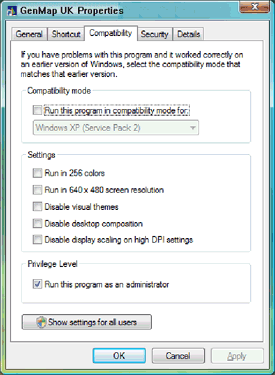
Usually the installation goes smoothly, but when you attempt to run the program you get an error: "Network initialisation failed. File or directory does not exist. File C:\PDOXUSRS.NET. Permission denied. Directory: C:\". This is because the program is attempting to write a small temporary file to the root folder of Drive C:, which is disallowed under Vista/7/8/10. However, there's a feature that allows you to provide administrator access on a program-by-program basis. This is on the Properties dialogue for each program, which can be found from various places on your computer. One of these is from the Start button: locate the menu option for GenMap UK, (or you can use its Desktop icon, if you have one). Right-click on this with your mouse and from the pop-up menu, select 'Properties'. Go to the 'Compatibility' tab (right), then in the ‘Privilege Level’ section towards the bottom click the checkbox labelled "Run this program as an administrator". Click the OK button. This will now always run GenMap in Administrator mode. As the program starts you will see a pop-up box entitled "User Account Control" - just click "allow" for the program to load successfully. Note that if the checkbox in the Properties dialogue (left) was greyed with a tick in it, you already have administrator privileges throughout the whole system. There is another, neater solution which avoids the pop-up box at start-up. You should be able to re-direct the temporary file to a different location by using the utility BDEADMIN.EXE, normally found in C:\Program Files\Common Files\Borland Shared\BDE (or perform a search for this file as it's sometimes found in a different location). Run BDEADMIN.EXE and drill down to Configuration Drivers > Native > Paradox. Then on the right-hand pane you should see the NET DIR setting. If you can change this to a location with 'write' access, i.e. almost anywhere but C:\, it should start up O.K. The Help FilesHelp files in releases of GenMap since v2.3 are in HTML Help format and should be displayed correctly in modern releases of Windows. For earlier versions of GenMap (up to v2.22), the following applies: its help files are in .HLP format and are not supported by Windows Vista/7/8 straight out of the box, so you'll get a message to that effect when you click on the program help. Microsoft has provided a viewer for these files, but only up to Windows 8.1. These are the relevant pages on the Microsoft website:
Note that these page addresses may change, in which case a search such as "winhelp for windows 8" in google should locate the page. From Windows 10, there's no support for reading these older help files.
Updated to 2 June 2023 |